Low-Fidelity Wireframes (Fall 2026)
This page shows the low-fidelity wireframes for the web app. The wireframes show the functions that the team plans to make. They do not show the final visual design.
The wireframes use three personas from the user stories: User, Steward, and Admin.
Open the interactive prototype
Open the interactive prototype (home.html)
Each screen is a static HTML page. Use the links and buttons to move between the screens.
- The prototype has one sign-in flow. When you sign in, you get Admin access. To see the Steward view, select "Switch to Steward view" in the top bar. Admin-only elements, for example the "Admin" item in the Menu, show only in the Admin view.
- A dashed label, for example
US 2.0.2, is on each element that a user story needs. The label gives the story number. - The "User Stories" panel on the right of each screen shows the stories for all screens. The panel highlights the stories for the current screen. The last group in the panel lists the story that has no screen (US 7.0.9, Won't Have).
- The prototype keeps the sign-in state in the local storage of your browser. It does not send data to a server.
A static image of all screens is also available: wireframe-F26.png. The team made this image before the story labels were added. It does not show the story labels or the elements that were added for them.
UI flow
The diagram shows the navigation paths between the screens. It comes from the links in the HTML pages.

| From page | To page | Action |
|---|---|---|
Sign In (signin.html) |
Reset Password (reset-password.html) |
Select "Forgot password?" |
| Sign In | Home (home.html) |
Select "Sign In" or "Skip sign-in" |
| Reset Password | Sign In | Select "Back to Sign In" |
| Home | Site Report (report.html) |
Select a site card |
| Home | Site Map (map.html) |
Select "View Map" |
| Site Map | Site Report | Select a site pin |
| Site Report | Profile (profile.html) |
Select a steward name. The link goes through profile-view.html, which opens profile.html in read-only mode. |
| Profile | Site Report | Select a row in "Site Inspection History" |
Admin Dashboard (admin-dashboard.html) |
Image Gallery (gallery.html) |
Select the "Image Gallery" card |
| Admin Dashboard | Site Report | Select the "Last Record" card |
| Admin Dashboard | Admin: All Inspections (admin-inspections.html) |
Select the "All Inspections" card or the Menu item |
| Admin pages | Admin: Sites (admin-sites.html) |
Select Menu, then "Sites" |
| Admin: Sites | Site Report | Select "View" on a site card |
| Admin: All Inspections | Site Report | Select a table row |
| Any page with a top bar | Home | Select "Home", "Logout", or "Sign Out" |
| Any page with a top bar | Profile | Select your name (signed in) or "Profile" (signed out) |
| Any page with a top bar | Sign In | Select "Sign In" (signed out only) |
| Home, Site Map, Site Report, Profile, Image Gallery | Image Gallery | Select Menu, then "Image Gallery" |
| Home, Site Map, Site Report, Profile, Image Gallery | Admin Dashboard | Select Menu, then "Admin" (Admin view only) |
Screens
| Screen | Screenshot |
|---|---|
| Sign In | 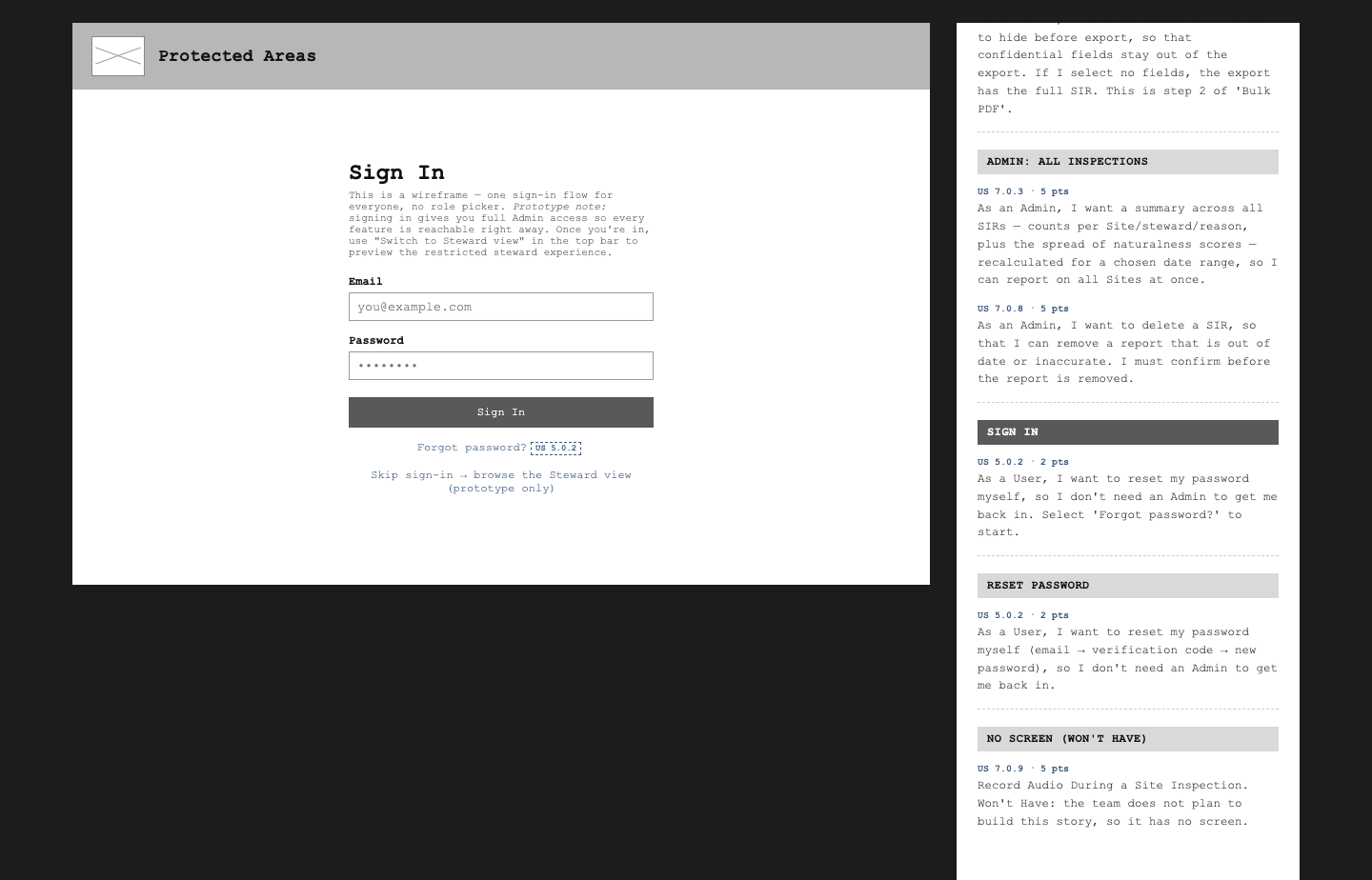 |
| Reset Password | 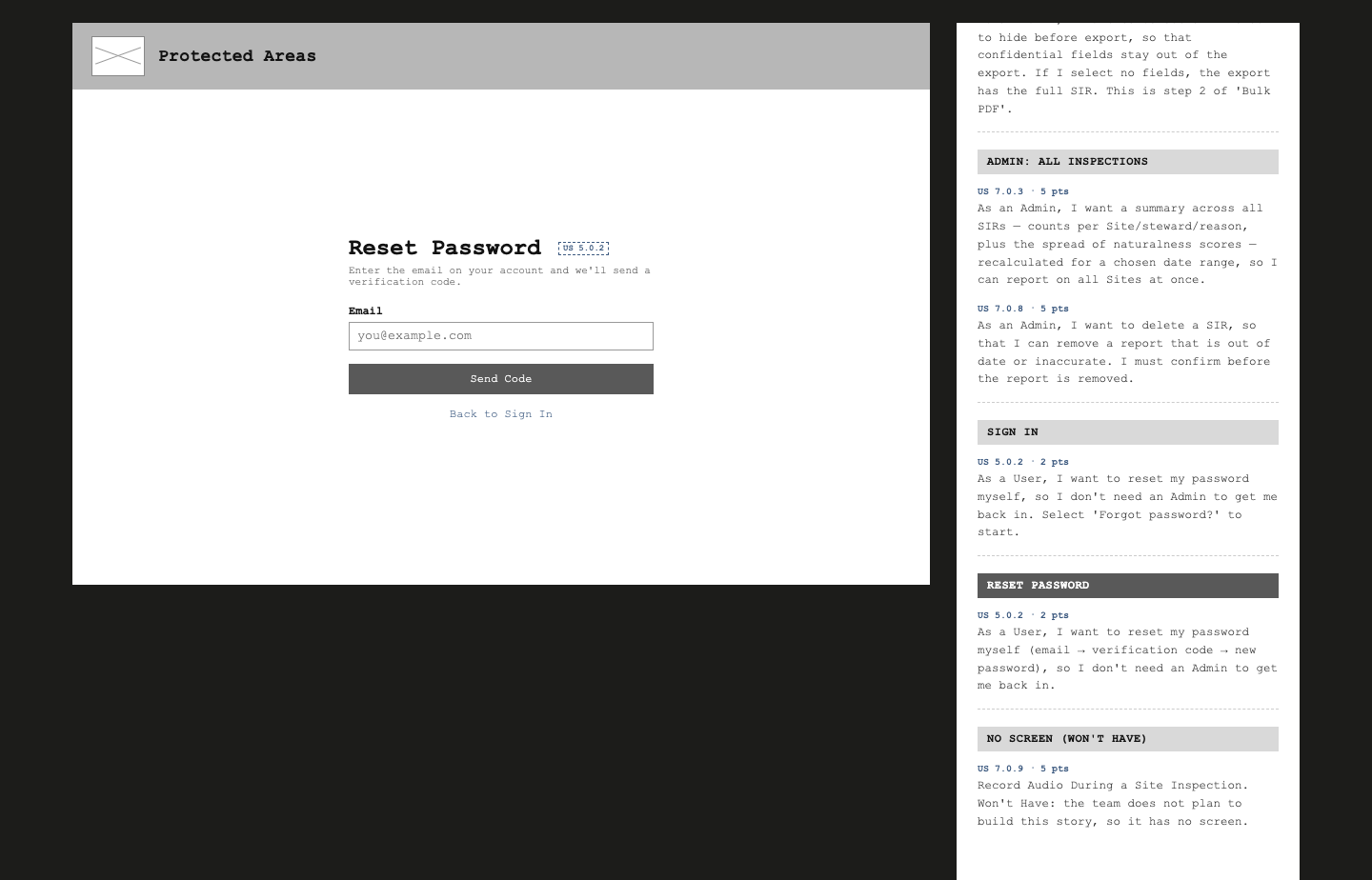 |
| Home | 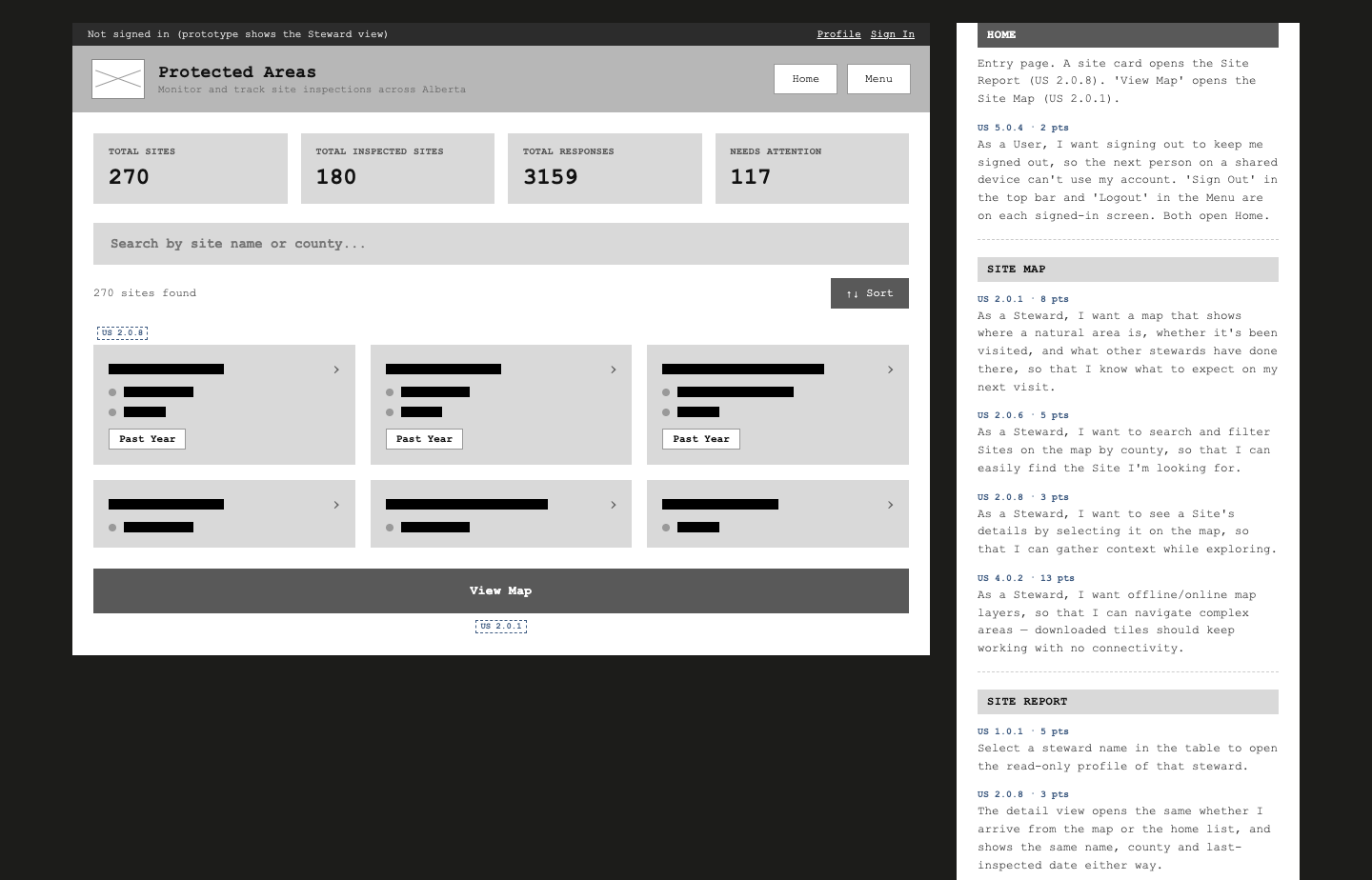 |
| Site Map | 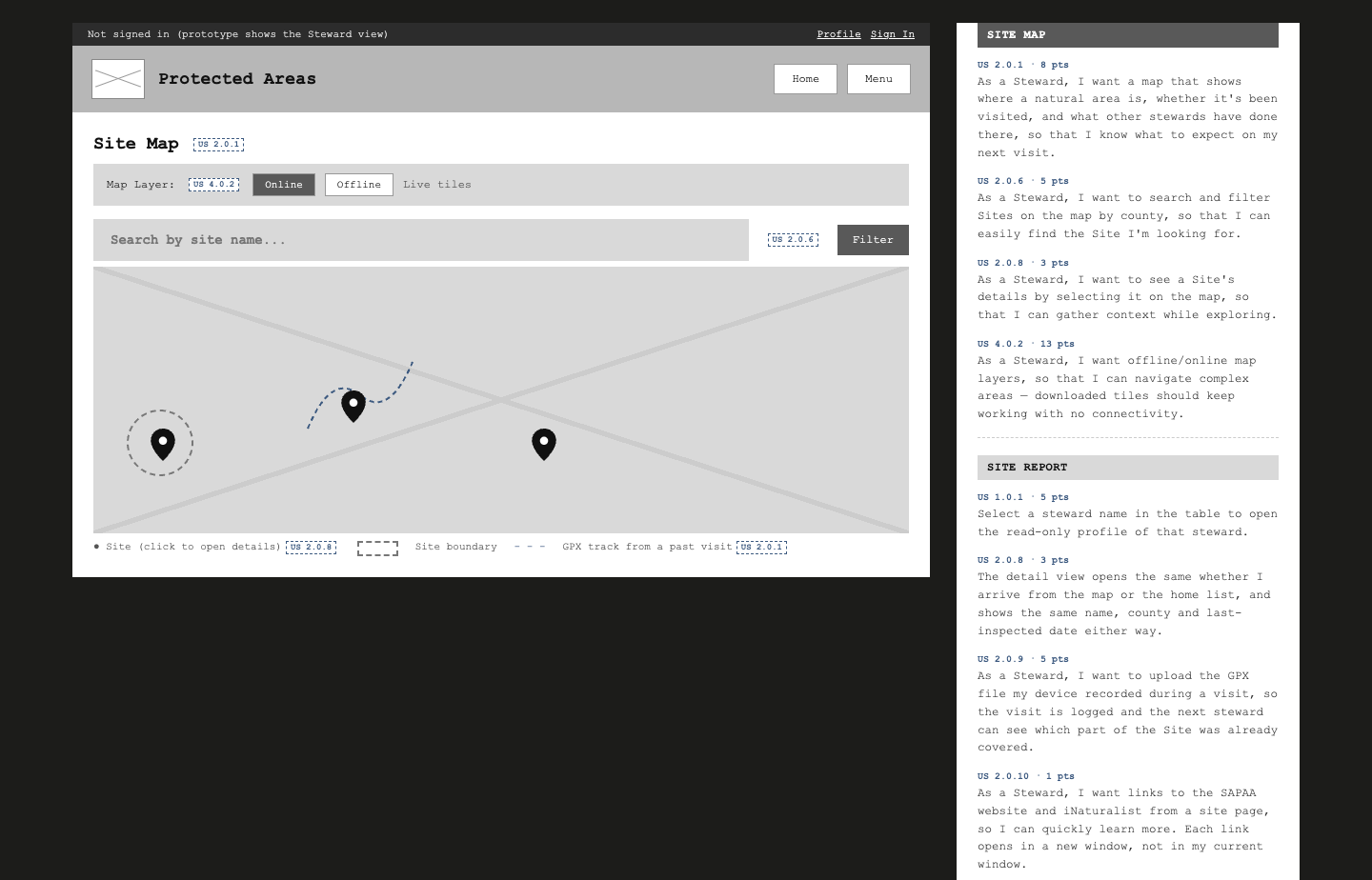 |
| Site Report | 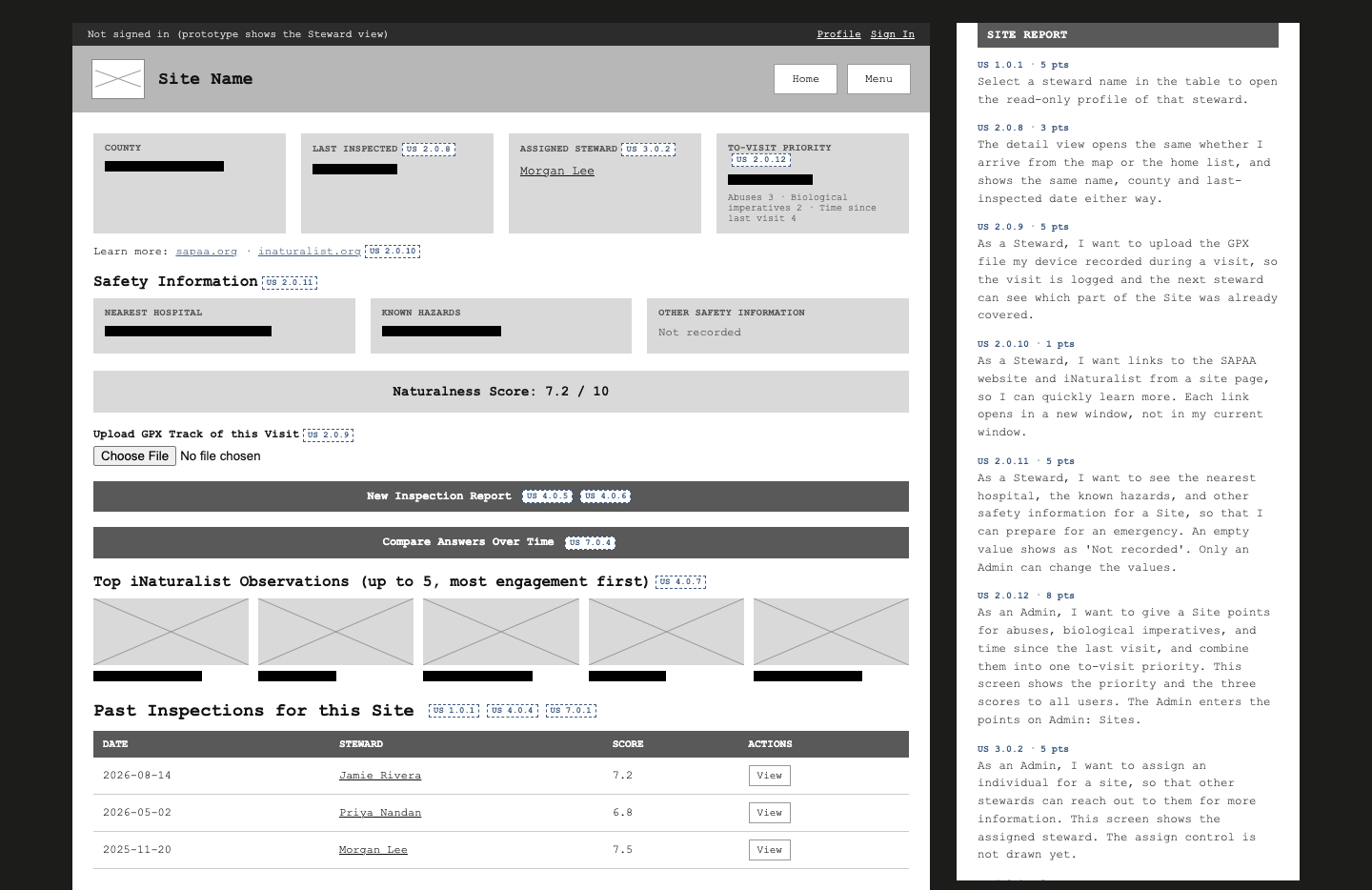 |
| Profile | 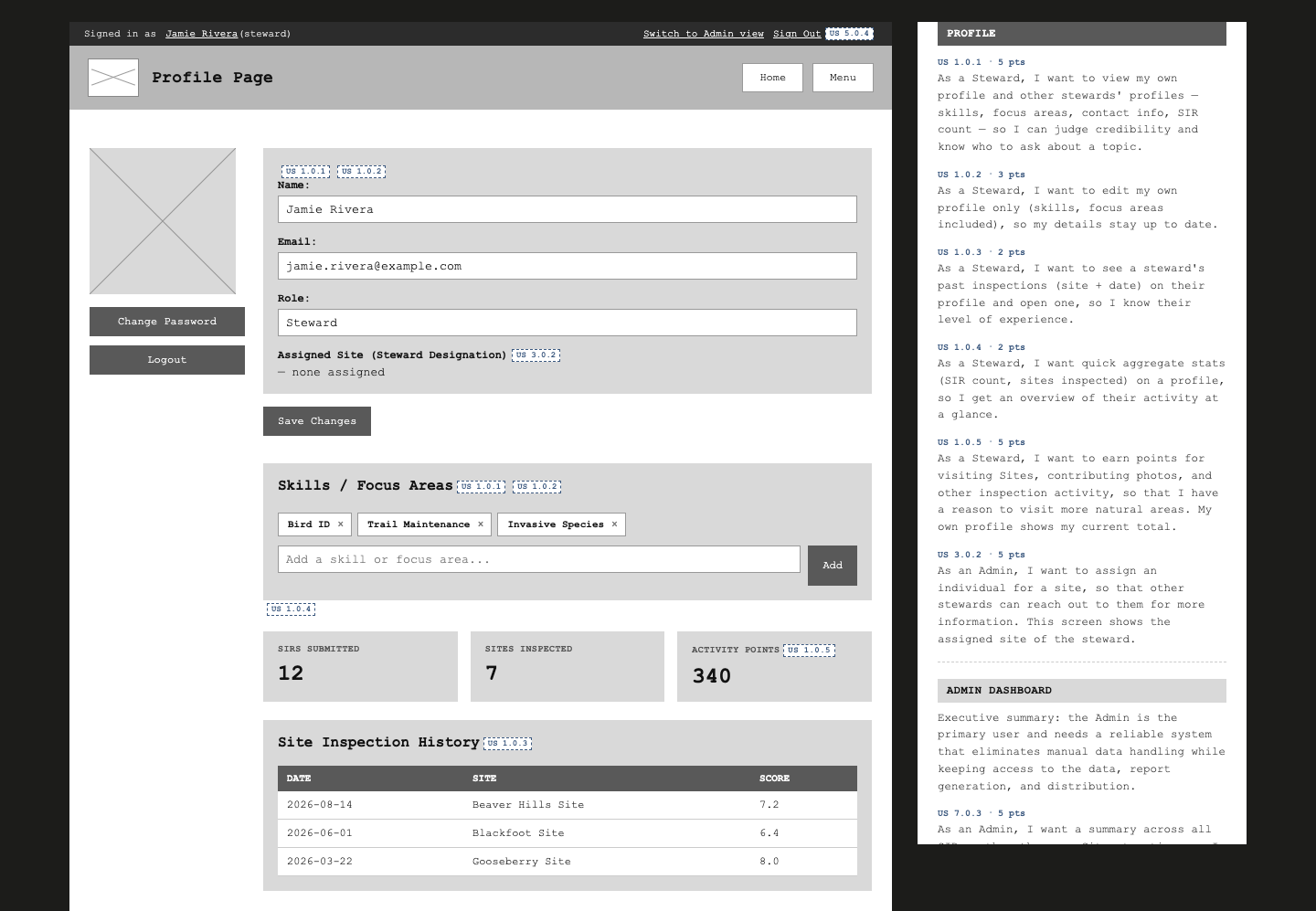 |
| Image Gallery | 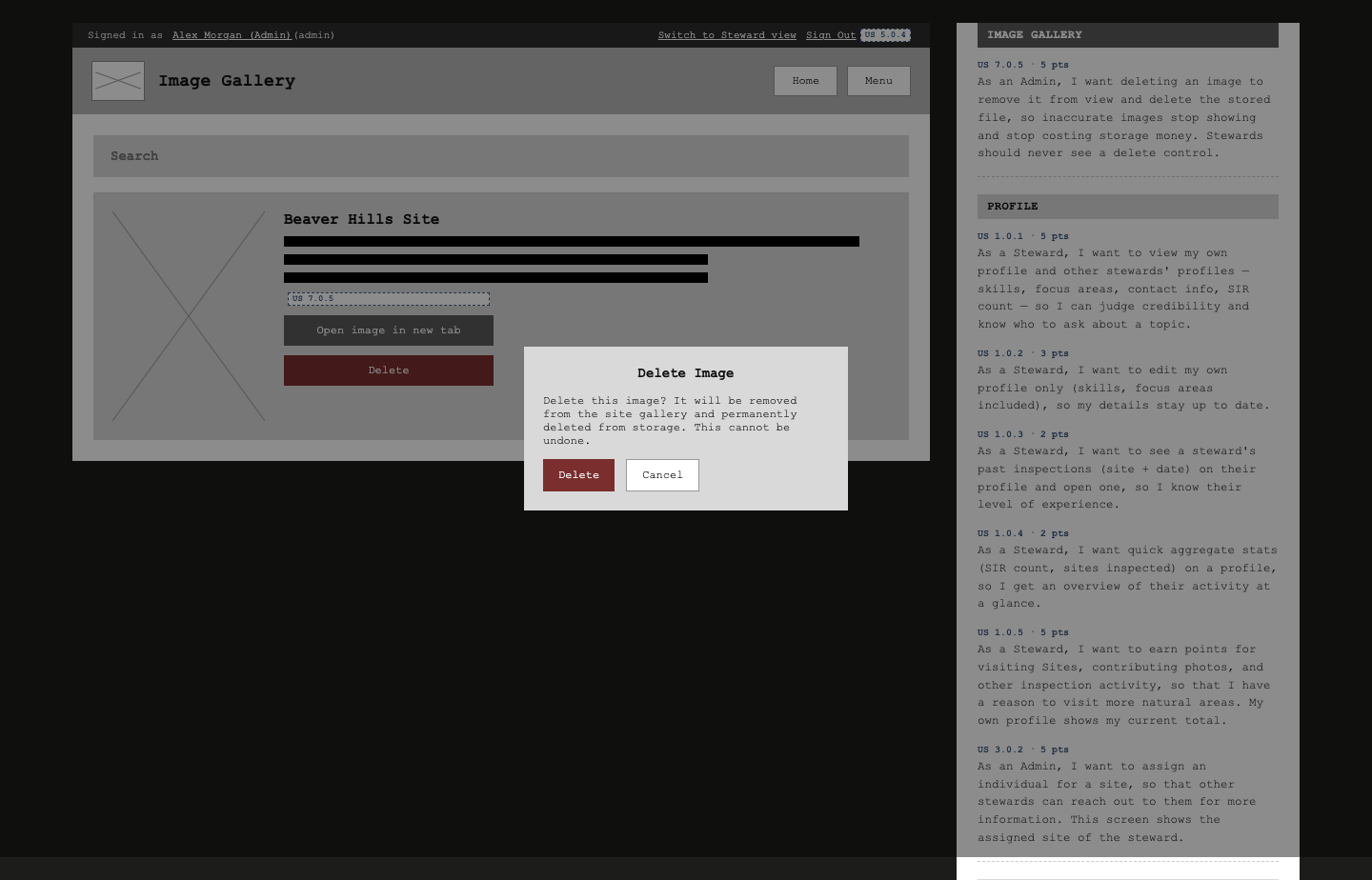 |
| Admin Dashboard | 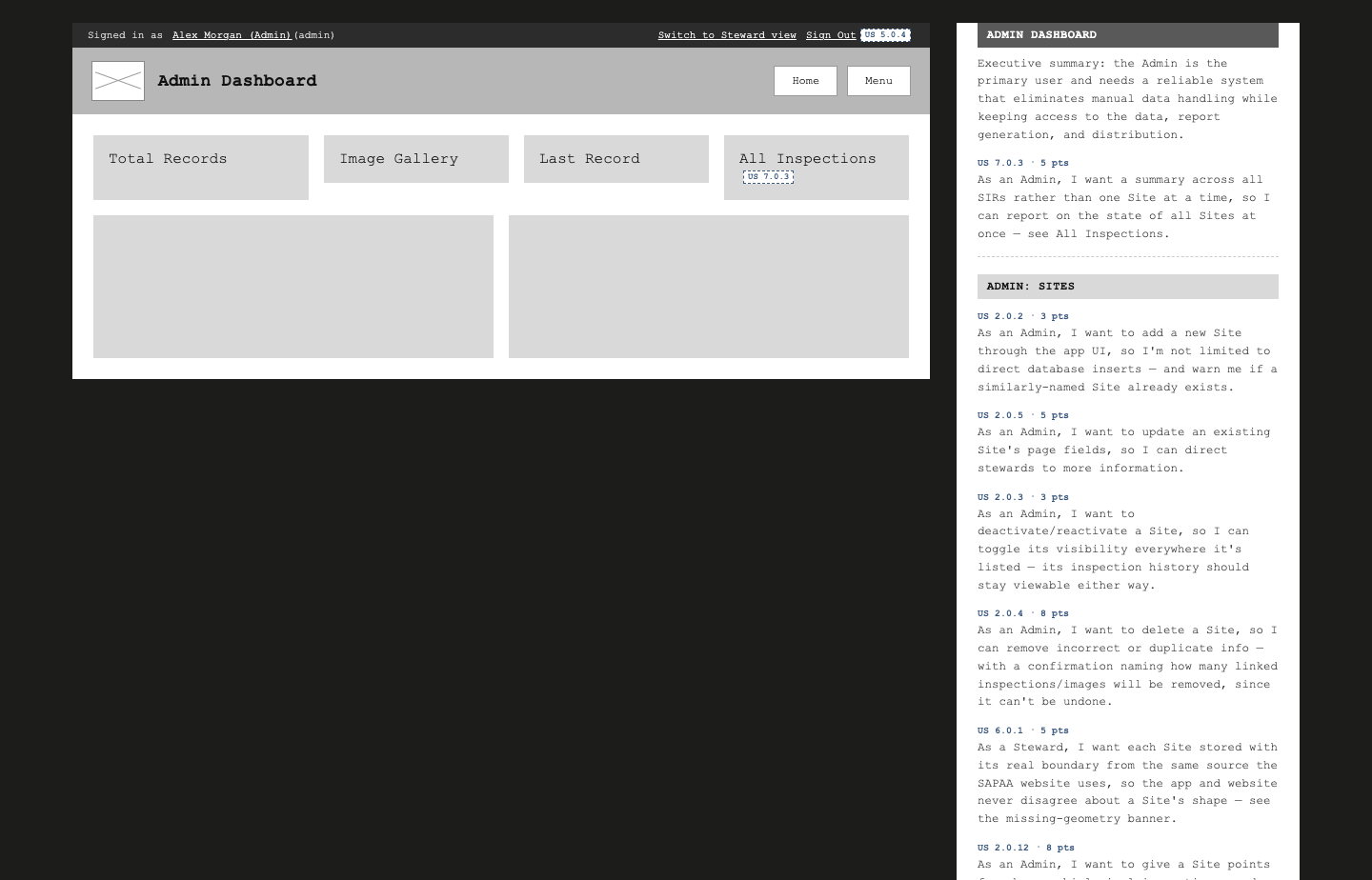 |
| Admin: Sites | 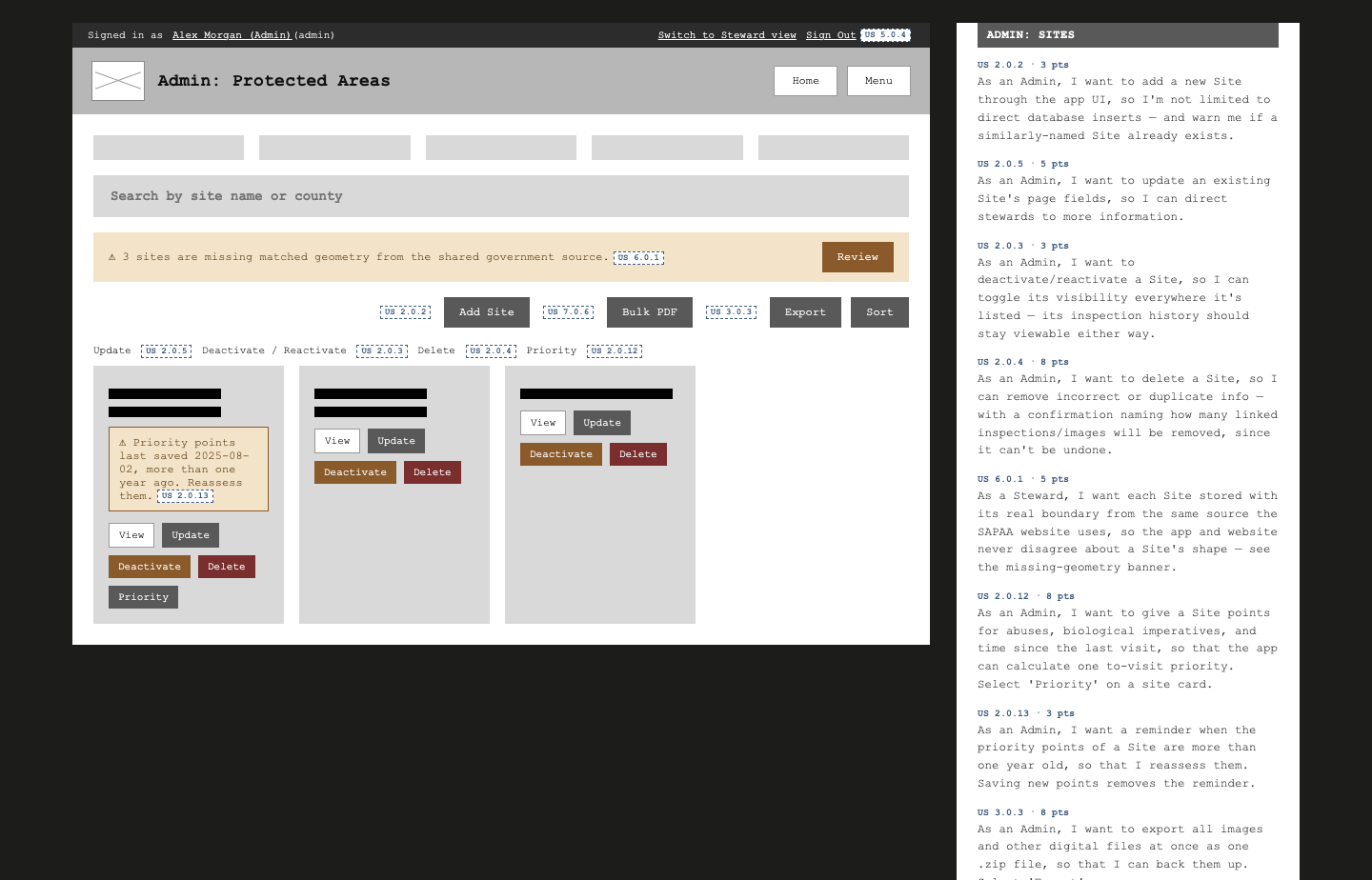 |
| Admin: All Inspections | 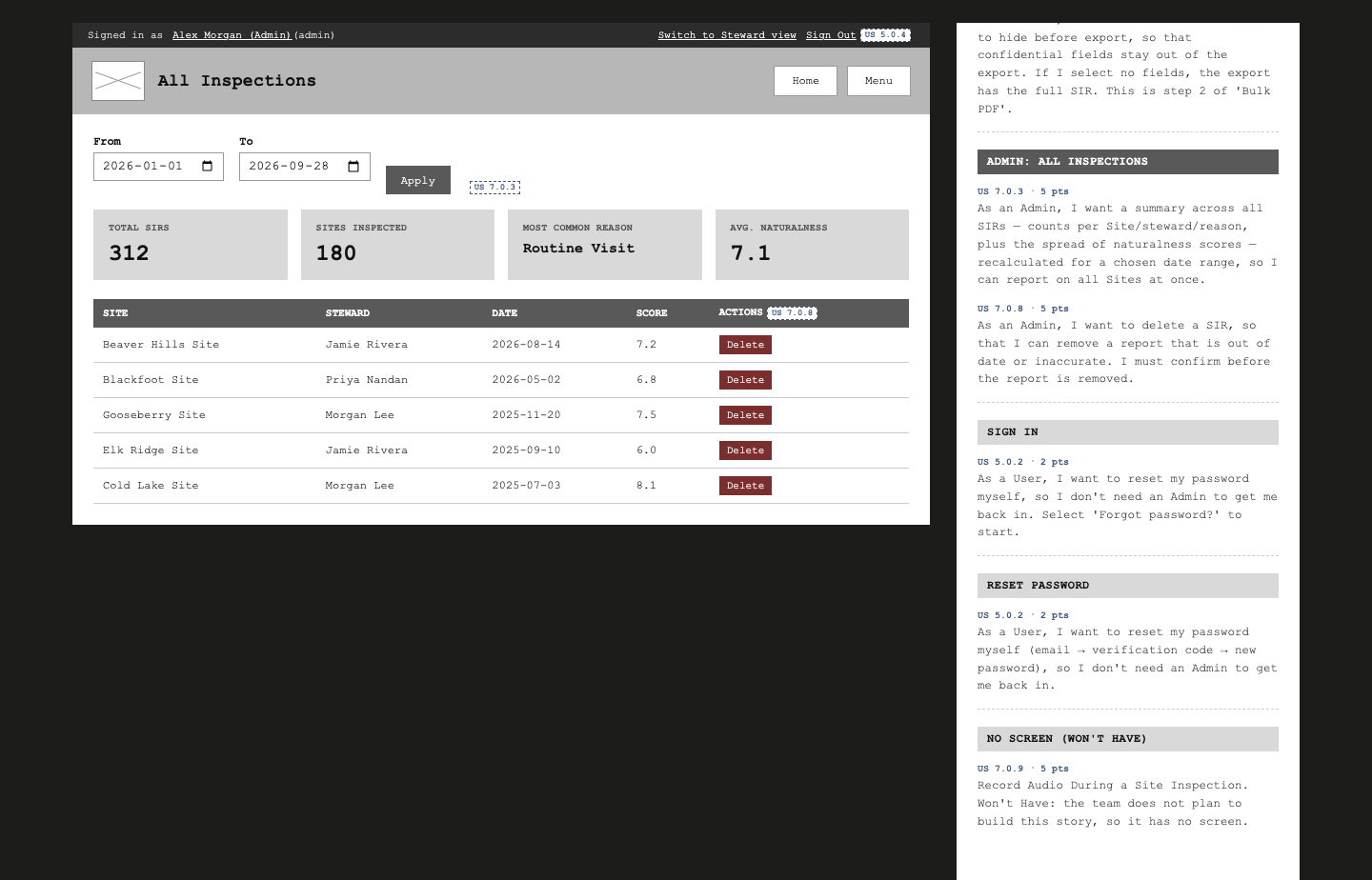 |
User story coverage
This table lists all 35 stories in User Stories. 34 stories have a screen. US 7.0.9 has no screen because it is a Won't Have story. US 7.0.4 is also a Won't Have story, but the wireframe keeps its screen element.
| Story | Title | Wireframe screen(s) |
|---|---|---|
| US 1.0.1 | Add User Profiles | Profile (own and read-only view of other stewards); Site Report (steward name links) |
| US 1.0.2 | Allow Editing Own Profile | Profile (own profile, "Save Changes", skills and focus areas) |
| US 1.0.3 | Show history of Site Inspections on a Steward's Profile | Profile ("Site Inspection History") |
| US 1.0.4 | Aggregate User Activity and Contributions on a user's profile | Profile ("SIRs Submitted", "Sites Inspected") |
| US 1.0.5 | Earn Points for Inspection Activity | Profile ("Activity Points" next to the SIR stats, on your own profile only) |
| US 2.0.1 | View Sites and Past Visits on an Interactive Map | Site Map (boundaries, pins, GPX track) |
| US 2.0.2 | Allow Admins to Add New Sites | Admin: Sites ("Add Site" form, duplicate warning, required fields, "Select Boundary on Map") |
| US 2.0.3 | Deactivate and Reactivate a Site | Admin: Sites ("Deactivate" and "Reactivate") |
| US 2.0.4 | Delete a Site | Admin: Sites ("Delete" with a confirmation that gives the linked record count) |
| US 2.0.5 | Update a Site | Admin: Sites ("Update" panel with fields to show or hide) |
| US 2.0.6 | Search and Filter Sites by County on the Map | Site Map (search box, county filter) |
| US 2.0.8 | View a Site's Details From the Map | Site Map (site pin); Site Report (county, last inspected); Home (site cards) |
| US 2.0.9 | Upload a GPX Track of a Site Visit | Site Report ("Upload GPX Track of this Visit") |
| US 2.0.10 | Add links to Site Page | Site Report ("Learn more" links to sapaa.org and inaturalist.org. Each link opens in a new window.) |
| US 2.0.11 | Show Safety Information for a Site | Site Report ("Safety Information": nearest hospital, known hazards, other safety information. An empty value shows "Not recorded". "Edit" shows for Admin only.) |
| US 2.0.12 | Score a Site for To-Visit Priority | Admin: Sites ("Priority" form with the three scores); Site Report ("To-Visit Priority" and the three scores, for all users) |
| US 2.0.13 | Flag Site Points That Are a Year Old | Admin: Sites (reminder on a site card when the points are more than one year old. "Save" in the "Priority" form removes the reminder.) |
| US 3.0.2 | Steward Designation | Site Report ("Assigned Steward"); Profile ("Assigned Site"). Partial: the screens show the assignment only. The Admin control to search for and assign a steward is not drawn. |
| US 3.0.3 | Export all digital files from SIR-SAPAA | Admin: Sites ("Export", with an "Export All Files" confirmation for one .zip file) |
| US 4.0.2 | Offline and Online Map Layers | Site Map ("Online" and "Offline" layer switch, offline banner) |
| US 4.0.4 | Edit My Previous Inspections | Site Report ("Edit" on your own inspection, Steward view only) |
| US 4.0.5 | iNaturalist integration | Site Report, "New Inspection Report" form ("Add Photo from iNaturalist", which fills in the Photo Identifier) |
| US 4.0.6 | Demote Photo Identifier to optional field | Site Report, "New Inspection Report" form ("Photo Identifier (optional)", with no "required" note) |
| US 4.0.7 | Show the Top iNaturalist Observations for a Site | Site Report ("Top iNaturalist Observations", up to 5, most engagement first) |
| US 5.0.2 | Reset a Forgotten Password | Sign In ("Forgot password?"); Reset Password (email, code, new password, done) |
| US 5.0.4 | Sign Out Properly | Top bar "Sign Out" and Menu "Logout" on each signed-in screen |
| US 6.0.1 | Store Each Site's Geometry From the Shared Source | Admin: Sites (banner for sites with no matched geometry) |
| US 7.0.1 | Let Stewards Export Their Own Reports | Site Report ("Export PDF" on your own inspection, Steward view only) |
| US 7.0.3 | See All Inspections in One View | Admin: All Inspections (date range, summary figures); Admin Dashboard ("All Inspections" card) |
| US 7.0.4 | Compare One Question Across Years | Site Report ("Compare Answers Over Time"). Won't Have: the team does not plan to build this story. |
| US 7.0.5 | Delete an Image and Clean Up After It | Image Gallery ("Delete" for Admin only, with confirmation) |
| US 7.0.6 | Export More Than 50 Site Inspection Reports | Admin: Sites ("Bulk PDF", step 1: "Select all SIRs (312)", with no limit of 50) |
| US 7.0.7 | Hide Fields on a SIR Before Export | Admin: Sites ("Bulk PDF", step 2: SIR fields with check boxes to hide) |
| US 7.0.8 | Delete a Site Inspection Report | Admin: All Inspections ("Delete" on each row, with a confirmation) |
| US 7.0.9 | Record Audio During a Site Inspection | No screen. Won't Have: the team does not plan to build this story. |
Differences between the wireframe and the stories
The team must decide how to fix these differences. This page does not change the stories or the screens for them.
- US 1.0.4: the story asks for the SIR count and the activities reported. The Profile screen shows "SIRs Submitted" and "Sites Inspected".
- US 2.0.5: the story says that the Admin uses "edit mode" on a site page. The wireframe puts "Update" on the Admin: Sites list, not on the Site Report.
- Admin: Sites has a "Site Visibility" field (Public or Stewards Only) in the "Add Site" form. No story asks for this field.
- US 2.0.12 and US 2.0.13: the stories say that the Admin enters the points and sees the reminder on the Site. The wireframe puts the "Priority" form and the reminder on the Admin: Sites list, the same as "Update" for US 2.0.5. The stories do not give the calculation of the to-visit priority, so the Site Report shows the priority as a placeholder bar.
Screens in the code that the wireframe does not draw
The team built these screens after the wireframe review. The prototype has no page for them. This
list describes them in text, from the code on main as of October 11, 2026.
| Screen | Where | What it shows |
|---|---|---|
| KML import (US 6.0.1) | Admin: Sites, components/KmlImportModal.tsx |
A dialog to choose a .kml or .kmz file. The browser uploads it to the private kml-imports bucket, then the server imports the protected areas and shows the counts of rows saved and skipped, and the warnings. |
| Archived sites (US 2.0.4) | /admin/sites/archived |
The archived sites, newest first, with "Restore" and "Permanently delete site". The delete shows the count of linked records first. |
| Archived reports (US 7.0.8) | /admin/reports/archived |
The archived Site Inspection Reports, with "Restore" and a permanent delete. |
| Assign a steward (US 3.0.2) | Site page, SiteSteward.tsx |
For an admin: "Assign steward" or "Change", a name search, and "No people match that name." when nothing matches. For others: "Steward: name", linked to the profile. |
| Awaiting Admin Approval | /sites, components/ProtectedRoute.tsx |
For a signed-in user that an admin has not approved: a message that an admin must approve the account, and "Sign Out". |
Client feedback
The client reviewed the wireframes in the client meeting on Friday, September 25, 2026, and said that they are acceptable. See the meeting minutes. The client asked for no changes.